Area of Interest
All AOI tools set the same AOI, so only the last one you use takes effect. The current AOI is summarized as text below the AOI buttons (e.g. "AOI ready: Polygon AOI" or "AOI ready: AOI from 3 selected feature(s)").
Draw Point / Draw Line / Draw Polygon
Click one of the three Draw buttons to activate an ArcGIS Pro sketch tool on the active map -- draw your shape and it becomes the AOI. Requires an open map view.
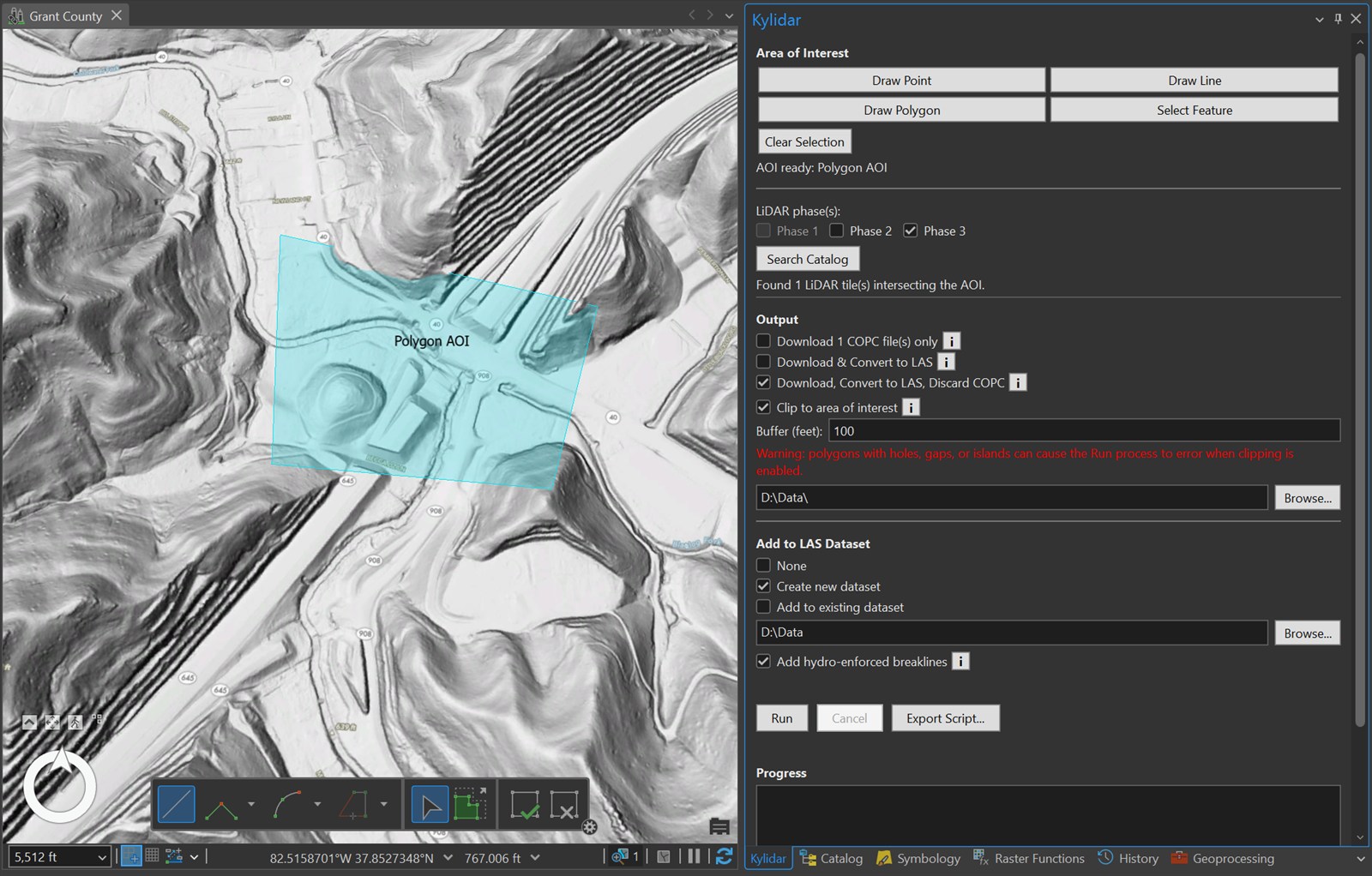
Once the shape is finished, the pane's status line confirms it ("AOI ready: Polygon AOI" above), and the shape stays on the map -- the cyan, labeled polygon is its Map Notes record.
A point or line AOI has no area on its own. This is fine for searching (the STAC search just needs an intersecting geometry) and for the two output modes with clipping off. If you turn on Clip to area of interest, though, a point or line AOI needs a buffer to have any actual area to crop tiles down to. This isn't enforced -- Run won't stop you from clipping a point/line AOI with no buffer -- but the result is an empty output, since every point gets cropped away.
Select Feature
Click Select Feature, then click (or drag a box over) existing features on the active map. Their combined geometry (unioned if more than one, and split back out into separate pieces if the result is multi-part -- e.g. two disjoint features) becomes the AOI, and the picked features get the normal Pro selection highlight.
If nothing is found where you clicked/dragged, a message box says so and the AOI is left unchanged -- click directly on a feature, or drag a box that overlaps one.
A selected polygon with holes, gaps, or islands can make PDAL's crop step error if clipping is enabled -- see the warning that appears under Clip to area of interest in that case.
Browse for File
Click Browse for File... to pick a shapefile or a file geodatabase feature class from disk and
use its features (unioned, same as Select Feature) as the AOI. Opens Pro's own Browse dialog
(the same one used throughout Pro), filtered to feature classes -- it can browse into a .gdb, not
just loose files.
Unlike Select Feature, the dataset doesn't need to already be a layer on the active map, so this is the quicker option when your AOI lives in a file you haven't opened in Pro yet. A feature class with no features, or a file type this can't open (anything but a shapefile or a geodatabase feature class), shows a message box rather than silently doing nothing.
Clear Selection
Clears the current AOI and the active map's feature selection. Search Catalog, Run, and Export Script all require an AOI, so this is mainly useful before drawing/selecting a fresh one.
Map Notes
Every draw/select action also adds the AOI geometry as a feature in one of Esri's built-in Map Notes layers (Point/Line/Polygon Map Notes, the same templates on Pro's Insert ribbon tab) -- not just held in memory. This gives you a real, persistent, editable record of what you drew: it survives switching AOI tools, can be edited like any other feature, and can be picked back up as an AOI later via Select Feature.
What actually gets searched vs. clipped
The area used to search the LiDAR catalog is the AOI exactly as drawn or selected (point, line, or polygon), buffered first if you've entered a buffer and turned on clipping (see Clipping) -- otherwise the buffer field has no effect at all. Every tile that intersects that search area is downloaded in full; clipping (when enabled) only affects what each tile is cropped to during conversion, not which tiles are found.
Current Extent
Click Current Extent to use the area currently visible in the active map as the AOI -- a rectangle matching the map view. Pan and zoom first, then click it. Nothing is drawn on the map and no Map Notes feature is created; clicking again after moving the map replaces the AOI. Keep the extent modest: a full-state view will match a very large number of tiles.