Getting Started
Open the pane
Click the Kylidar tab, then the Kylidar button. This opens a dockable pane (docked alongside the Contents pane by default) that stays open as you work.
Feedback and Help, at the top of the pane, are available any time: Feedback opens a dialog to report a bug or request a feature -- either on GitHub, or straight to the developer with no GitHub account needed -- and Help opens this documentation site in your browser. Check version compares your installed build with the latest release and, if there's a newer one, offers to open its download page (close ArcGIS Pro before installing it).
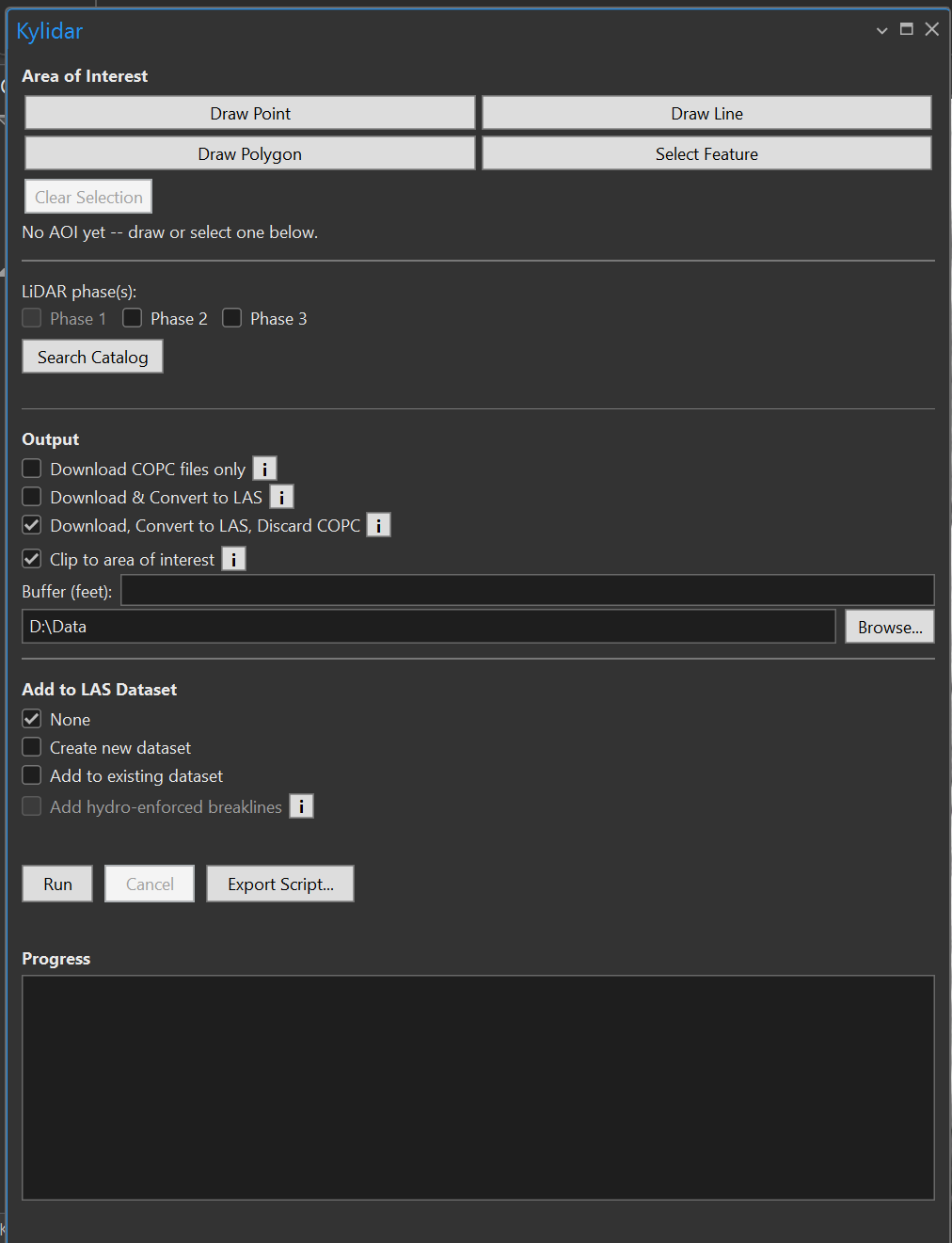
The pane reads top to bottom in the order you'd use it: set the area of interest, pick the phase(s), choose the output, optionally build a LAS dataset, then Run (or Export Script...) and watch the Progress log.
A first run, end to end
The pane below is set up for a typical run: a polygon AOI, Phase 3, one tile found by Search Catalog, clipping to the AOI with a 100 ft buffer, and a new LAS dataset with hydro-enforced breaklines. The steps that follow explain each part.
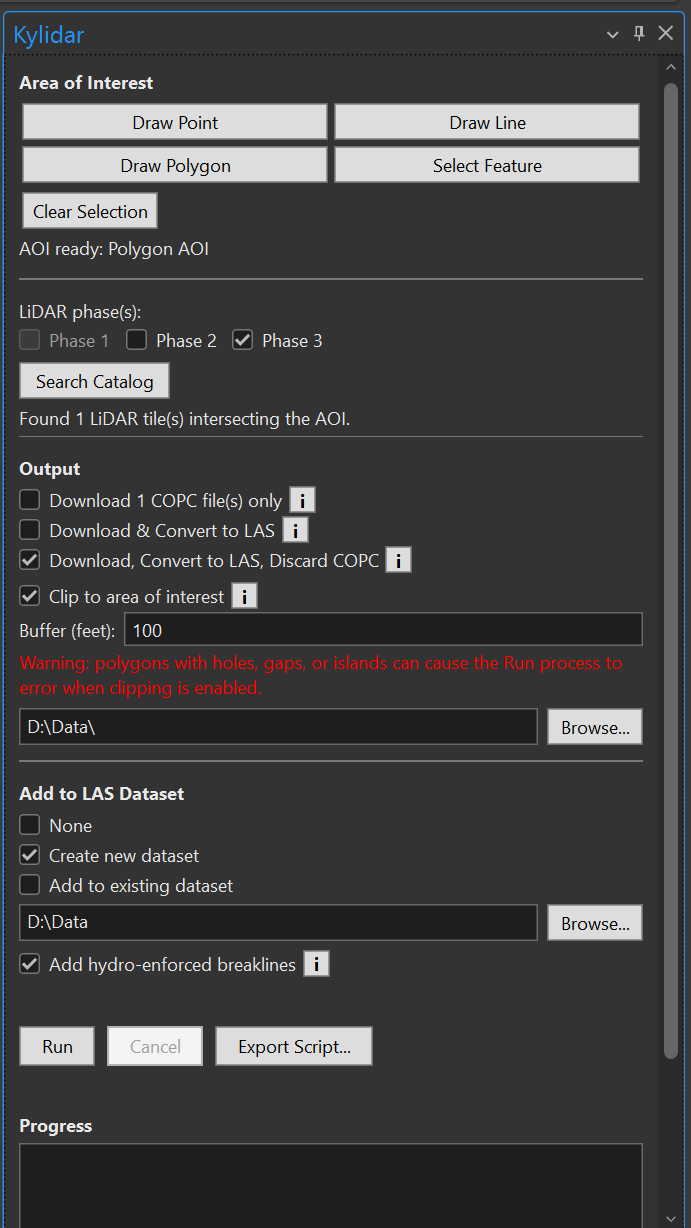
- Set an area of interest. Under Area of Interest, click Draw Point, Draw Line, Draw Polygon, or Select Feature and define your AOI on the active map, or Browse for File... to use a shapefile or geodatabase feature class from disk without first adding it as a layer. The status line below the buttons updates to confirm what was captured (e.g. "AOI ready: Polygon AOI"), and a persistent Map Notes feature is added to the map (drawn AOIs only). See Area of Interest for details, or Clear Selection to start over.
- Choose LiDAR phase(s). Check one or more phases. Phase 1 is disabled here -- see LiDAR phases.
- (Optional) Search Catalog. Click Search Catalog to preview how many tiles match your AOI and phase selection before running anything.
- Choose an output mode. Pick one of Download COPC file(s) only, Download & Convert to LAS, or Download, Convert to LAS, Discard COPC (the default). Each has an i button explaining the disk-space/speed tradeoff. See Output modes.
- (Optional) Clip to area of interest. Check this to crop each tile to the AOI during conversion; a Buffer (feet) field appears when checked. See Clipping.
- Compress to zLAS. On by default: compresses the converted
.lasoutput to Esri's own zLAS format (needs the 3D Analyst extension) -- uncheck it to keep plain.las. See Compress to zLAS. - Set the output folder. Defaults to a timestamped folder inside the current project's own folder; use Browse... to pick somewhere else.
- (Optional) Add to LAS Dataset. Choose Create new dataset or Add to existing dataset
to fold the output
.las(or.zlas) file(s) into a.lasdand add it to the map once the run finishes. With a dataset chosen you can also check Add hydro-enforced breaklines to add the Phase 2/3 breaklines inside the AOI as a surface constraint -- see Hydro-enforced breaklines. - Click Run. The pane's progress log fills in live as tiles are found, downloaded, and converted. Cancel stops an in-progress run.
Re-running with different settings
You can change the phases, output mode, clip/buffer, or output folder and click Run again without redrawing the AOI -- the AOI persists in the pane (and as a Map Notes feature) until you draw or select a new one, or click Clear Selection.
Running without ArcGIS Pro
Click Export Script... instead of Run to write a stand-alone download/convert script for the current AOI's tiles -- useful for very large batches, running on another machine, or scheduling for later. See Export Script, and Running an exported script for how to launch each format.