Output & Running
LiDAR phases
Check one or more phases to search. Phase 1 is disabled -- hover over it to see why: Phase 1 tiles are in regular LAZ format (not COPC), and should be downloaded using the kyfromabove-stac-addin tool instead. Phases 2 and 3 are COPC-backed and supported here.
STAC catalog
Kylidar searches the KyFromAbove STAC catalog only.
Search Catalog
Click Search Catalog to preview how many tiles intersect your current AOI and phase selection, without downloading or converting anything. The result also updates the Download N COPC file(s) only checkbox label with the count. Run always does its own fresh search regardless of whether you've clicked this first.
Search limit
Each search is capped at 200 tiles by default. If a search comes back with exactly that many, a Search limit field appears below the status text -- raise it and click Search Catalog again to search past the default cap. Run and Export Script pick up whatever limit is currently set, so if you needed to raise it to see your full coverage, raise it before running or exporting too, not just for the preview.
Output modes
Pick exactly one (they behave like a radio group, drawn as checkboxes):
| Mode | What it does | Tradeoff |
|---|---|---|
| Download COPC file(s) only | Downloads each matching tile's raw COPC/LAZ file as-is. No PDAL involved. | Fastest, least disk space -- but you get compressed source files, not ready-to-use .las. |
| Download & Convert to LAS | Downloads each tile, converts it to .las, and keeps both (raw tiles in a COPC subfolder, converted files in a LAS subfolder). |
Most disk space, but the raw tiles are on hand again without re-downloading. |
| Download, Convert to LAS, Discard COPC (default) | Downloads each tile, converts it to .las, then deletes the raw copy. |
Least disk space of the conversion options, but you'd need to re-download the raw tile(s) if wanted again. |
Each has an i button with this same tradeoff text. Every tile becomes its own .las file --
there's no "merge everything into one file" step.
Compress to zLAS
Compress to zLAS (.zlas) additionally compresses each converted tile to Esri's own zLAS format,
via the Convert LAS geoprocessing tool. It is on by default; uncheck it to keep plain .las
(for example if 3D Analyst isn't licensed, or another tool needs .las). Only applies to the two
convert modes above -- it has no effect on Download COPC file(s) only, since there's no .las
yet to compress.
- Needs the 3D Analyst extension. Same requirement as the LAS dataset tools this add-in already uses elsewhere. If it's not licensed, the run fails with whatever error Convert LAS reports.
- Replaces the
.las, it doesn't add to it. Each tile's uncompressed.lasis deleted once its.zlassibling exists, so the output folder (andAdd to LAS Dataset, which accepts.zlasdirectly) ends up with.zlasfiles instead of.las. - Not in Export Script. Export Script produces a kit that runs without ArcGIS Pro, and zLAS
compression is an arcpy/3D Analyst-only step with no portable equivalent -- exported kits always
produce plain
.las.
Clipping to the area of interest
Clip to area of interest is off by default -- when off, every tile is converted (or kept) in full. Turn it on to crop each tile to the AOI during conversion, via PDAL. This only affects the two conversion modes; Download COPC file(s) only never runs PDAL, so there's nothing to crop.
Clipping can significantly increase processing time, especially for large AOIs or many tiles (see the i button next to the checkbox).
Buffer
A Buffer (feet) field appears once clipping is turned on. It's optional, and Run/Export Script never block on it being set:
- For a polygon AOI, leaving it at
0/empty clips to the polygon's own boundary. - For a point or line AOI, a buffer is what actually gives the crop an area -- leaving it at
0/empty means every point gets cropped away, producing empty output rather than an error.
The buffer (when set) widens both the STAC search area and the crop area -- see What actually gets searched vs. clipped.
Polygons with holes, gaps, or islands
A drawn/selected polygon AOI with holes, gaps, or islands can make PDAL's crop step error. Kylidar warns about this under the clip checkbox when it applies, but can't fully paper over it -- simplify the AOI if you hit a crop failure.
Output folder
Defaults to a timestamped folder (kylidar_clip_<yyyyMMdd_HHmmss>) inside the current project's own
folder -- the one holding the open .aprx -- rather than a Windows temp directory, so the output
isn't at risk of being cleaned up along with anything ArcGIS Pro considers temporary. Falls back to
the Windows temp directory if no project is open. Use Browse... to choose a different location
before running. Its internal layout depends on the chosen output mode (see the table above). The
default .lasd path under Add to LAS dataset below follows the same rule.
Add to LAS dataset
Choose None, Create new dataset, or Add to existing dataset before running -- unlike the old per-run prompt, this choice is made up front:
- Create new dataset prompts for a
.lasdpath, creates it containing all of the run's output.lasfile(s), and adds it to the active map. - Add to existing dataset prompts you to pick an existing
.lasdand appends the output file(s) to it, then adds it to the active map.
A new dataset is created without computing statistics, which skips an extra pass over every point and so is faster; they can still be computed afterward if you need them.
Hydro-enforced breaklines
Add hydro-enforced breaklines (available once a dataset option is selected) downloads the
KyFromAbove hydro-enforced breaklines inside the AOI and adds them to the LAS dataset as a
Hard_Line surface constraint, so lakes, ponds, streams and bridges are enforced when the dataset
is triangulated into a surface.
- Phase 2 and Phase 3 only. The Phase 1 breaklines service has no elevation (Z) values, so it can't be used as a constraint (Phase 1 is also not selectable in Kylidar, see above).
- Clipped to the AOI. The breaklines are clipped to the same polygon used to find tiles -- your AOI, or the AOI plus buffer when Clip to area of interest has a buffer -- so this needs a polygon AOI, or clipping with a buffer. Note the point cloud itself is only cropped when Clip to area of interest is on; with clipping off you get whole tiles but breaklines only inside the AOI.
- Reprojected to EPSG:3089. The services are Web Mercator; Kylidar converts them to Kentucky Single Zone (ftUS) to match the tiles, using ArcGIS Pro's default datum transformation (about 3 ft different from a naive conversion, and the one that lines up with the LiDAR). Z is already in feet.
- Where they go. The clipped lines are written to a
breaklines_<timestamp>.gdb(feature classBreaklines, withBL_TYPEandPHASEfields) in the output folder, and added to the active map as a Hydro-enforced breaklines layer above the LAS dataset. The dataset references that geodatabase, so keep it alongside the dataset. - Best effort. If the breakline download fails, or none fall inside the AOI, the log says why and the dataset is still built without the constraint.
Run / Cancel
Run requires an AOI, at least one LiDAR phase, and an output folder (plus a dataset path if you've chosen to create/add to one, and -- if breaklines are on -- Phase 2 or 3 plus a polygon AOI or a clip buffer). It's disabled while a run or a catalog search is already in progress.
Click Run to start the search-download-convert pipeline; click Cancel to stop an in-progress run (cancellation is checked between steps, so in-flight downloads/conversions finish before it takes effect).
Export Script
Click Export Script... to write a stand-alone download/convert kit for the current AOI's matching tiles, using the same phase and output-mode settings as Run -- for very large batches, running on another machine, or scheduling for later. A dialog asks for a format and a destination folder; the line under the format list describes whichever one is selected.
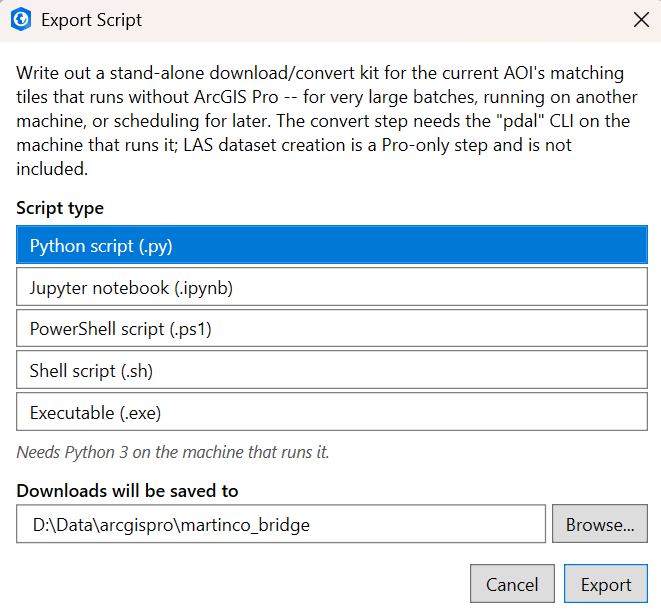
The formats:
- Python script (.py) -- needs Python 3 on the machine that runs it.
- Jupyter notebook (.ipynb) -- runs in Jupyter/JupyterLab, VS Code's notebook viewer, or Google Colab; the same logic as the Python script, split into cells (config, helpers, run).
- PowerShell script (.ps1) -- Windows only, nothing to install.
- Shell script (.sh) -- macOS/Linux/WSL, needs
curl. - Executable (.exe) -- Windows only; a single, self-contained file (the tile list and settings
are embedded in it), with no Python or .NET install. It is the add-in's bundled
KylidarDownloader.exewith your manifest appended.
Any format whose output mode converts to .las also needs the pdal command-line tool available
where it runs -- see Running an exported script below, since on
Windows that is not as simple as it sounds. Download COPC file(s) only never runs PDAL, so it
needs nothing extra. LAS dataset creation and breaklines are not included -- those are
ArcGIS Pro/arcpy-only steps; add the .las output to a dataset from within Pro afterward if needed.
Running an exported script
Each script's header comment also repeats the command to run it. In every case the destination folder and options are near the top of the file if you want to change them first.
Getting pdal (only needed when converting to .las)
pdal is not on the PATH of a normal Windows machine, even one with ArcGIS Pro installed. Pro
bundles PDAL, but it only works inside Pro's own Python environment, so a script launched from
File Explorer, a plain Command Prompt, or PowerShell ISE will download the tiles and then fail at
the convert step with a "file not found" style error for pdal. (If only part of its folder is on the
PATH you instead get Windows exit code -1073741515, a missing-DLL error.)
- On a machine with ArcGIS Pro: open the Start menu → ArcGIS → Python Command Prompt
(the one that activates Pro's environment),
cdto the folder holding the script, and run it from there with the commands below. You can check withpdal --version. - On a machine without Pro: install PDAL yourself (for example
conda install -c conda-forge pdal) and run the script from that environment.
Adding only Pro's Library\bin folder to PATH is not enough -- PDAL needs the rest of the
environment that activation sets up.
Per format
| Format | How to run |
|---|---|
| Executable (.exe) | Double-click it. For a download-only export that is all you need. If it converts, launch it from the Python Command Prompt instead (type its path, or cd to its folder and type its name). It stays open with Press Enter to exit... when it finishes, so you can read the result. Windows SmartScreen may warn about it, since it isn't code-signed. |
| PowerShell (.ps1) | Double-clicking a .ps1 opens it in an editor rather than running it -- that's a Windows default, not a problem with the script. Run it from a prompt: powershell -ExecutionPolicy Bypass -File "C:\path\to\kylidar_export_....ps1". The -ExecutionPolicy Bypass covers just that one run, and avoids the "running scripts is disabled on this system" error. Right-click → Run with PowerShell also usually works, but the window can close before you read the output. PowerShell ISE works too (open the file, press F5), but it isn't Pro's environment, so it can only do download-only exports. |
| Python (.py) | python "C:\path\to\kylidar_export_....py" -- from the Python Command Prompt, python is Pro's own Python, which needs nothing installed beyond what Pro has. |
| Notebook (.ipynb) | Open it in Jupyter/JupyterLab or VS Code and run the cells top to bottom. When converting, the notebook's kernel must be an environment that has pdal (Pro's Python environment has it). |
| Shell (.sh) | bash "/path/to/kylidar_export_....sh" on macOS, Linux or WSL. Needs curl, plus pdal when converting. |
Progress log
Below Run/Cancel, the Progress log fills in live as each step happens, and while a run is going a progress bar appears under it:
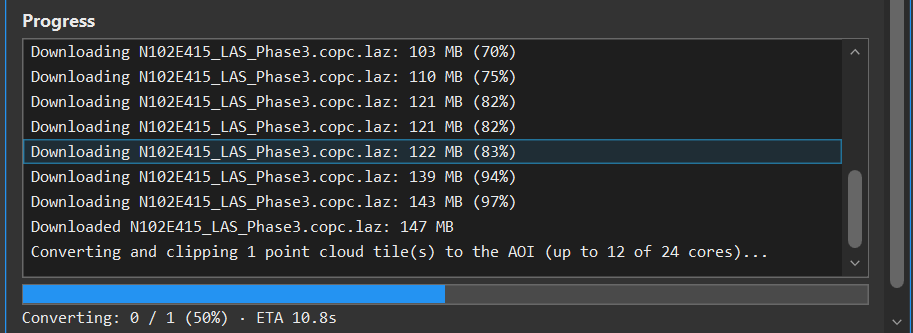
The bar shows the current phase (Downloading or Converting), how many tiles are done, the overall percentage, and an ETA once there's enough data to estimate one. In the two conversion modes downloading fills the first half of the bar and converting the second, so it sits at 50% when the downloads finish and conversion begins, as above.
An abridged log (without the per-tile download lines) looks like this, e.g. for Download, Convert to LAS, Discard COPC with clipping off:
Searching STAC catalog for LiDAR coverage...
Found 3 LiDAR tile(s) intersecting the AOI.
Converting 3 point cloud tile(s) (up to 2 of 4 cores)...
Converted N095E230_LAS_Phase2.copc.laz.
Converted N095E231_LAS_Phase2.copc.laz.
Converted N095E232_LAS_Phase2.copc.laz.
Done: 3 file(s) written to D:\Data\maysville (12.4s so far).
LAS dataset created (0.8s).
Total time: 13.2s
Tiles download and convert concurrently (throttled by CPU count and, for the conversion step, live memory pressure), so the exact order of "Converted ..." lines can vary between runs.