Collections & Sources
Loading collections
Under Collections, click Load collections to fetch the list of available collections from every active API source and populate the checkbox list. Collection names are sorted alphabetically.
- Nothing checked → search runs against every collection from every active source.
- Some checked → search is limited to just those collections.
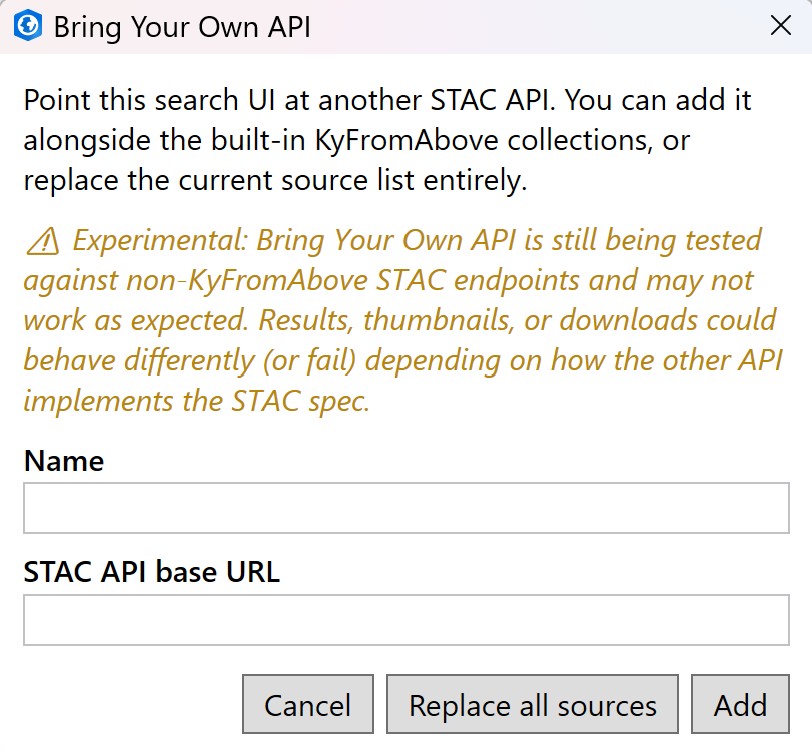
Bring Your Own API
Experimental
Bring Your Own API is still being tested against non-KyFromAbove STAC endpoints and may not work as expected. Depending on how the other API implements the STAC spec, results, thumbnails, or downloads could behave differently or fail outright.
The built-in KyFromAbove catalog is always available, but you can point the pane at any other
STAC API (for example, a self-hosted stac-fastapi or
TiTiler-backed catalog) that implements the standard
/collections and /search endpoints.
- Click Bring Your Own API... at the top of the pane.
- Either pick a catalog from the Choose a public API from STAC Index dropdown, which fills in the Name and URL for you, or type your own: a Name (used to label collections from that source) and the STAC API base URL. You can edit the filled-in values before continuing.
- Choose:
- Add — keep the current source(s) and add this one alongside them.
- Replace all sources — drop every current source and search only this API.
The dropdown is loaded live from STAC Index when the dialog opens. It lists only public catalogs that expose a searchable STAC API: catalogs that need a login or API key, static (non-searchable) catalogs, and openEO endpoints are left out. If STAC Index can't be reached, you can still enter a URL by hand.
Getting back to the KyFromAbove catalog
KyFromAbove (Kentucky's default catalog) is always the first entry in the dropdown, even when STAC Index can't be reached. After switching to another API, open Bring Your Own API..., pick it, and click Replace all sources to restore the built-in source. Clicking Add with it selected adds it back alongside your other sources instead (or tells you it's already active).
Active sources are shown as small chips under the button. Any source you added (not the built-in default) has a small x to remove it, which also clears any collections/results that came from it.
When more than one source is active, collections from non-default sources are labeled
Title · Source Name in the checklist so they're never ambiguous.
How multi-source search works
- Load collections queries every active source independently -- one unreachable "bring your own" API doesn't stop the built-in catalog (or any other source) from loading.
- Search runs in parallel across whichever sources have a matching checked collection (or every source, if nothing is checked), then merges the results into one list.
- Pagination ("Next page") is tracked per source, so a source that runs out of results doesn't block paging through the others.