Search & Results
Filters
| Control | Notes |
|---|---|
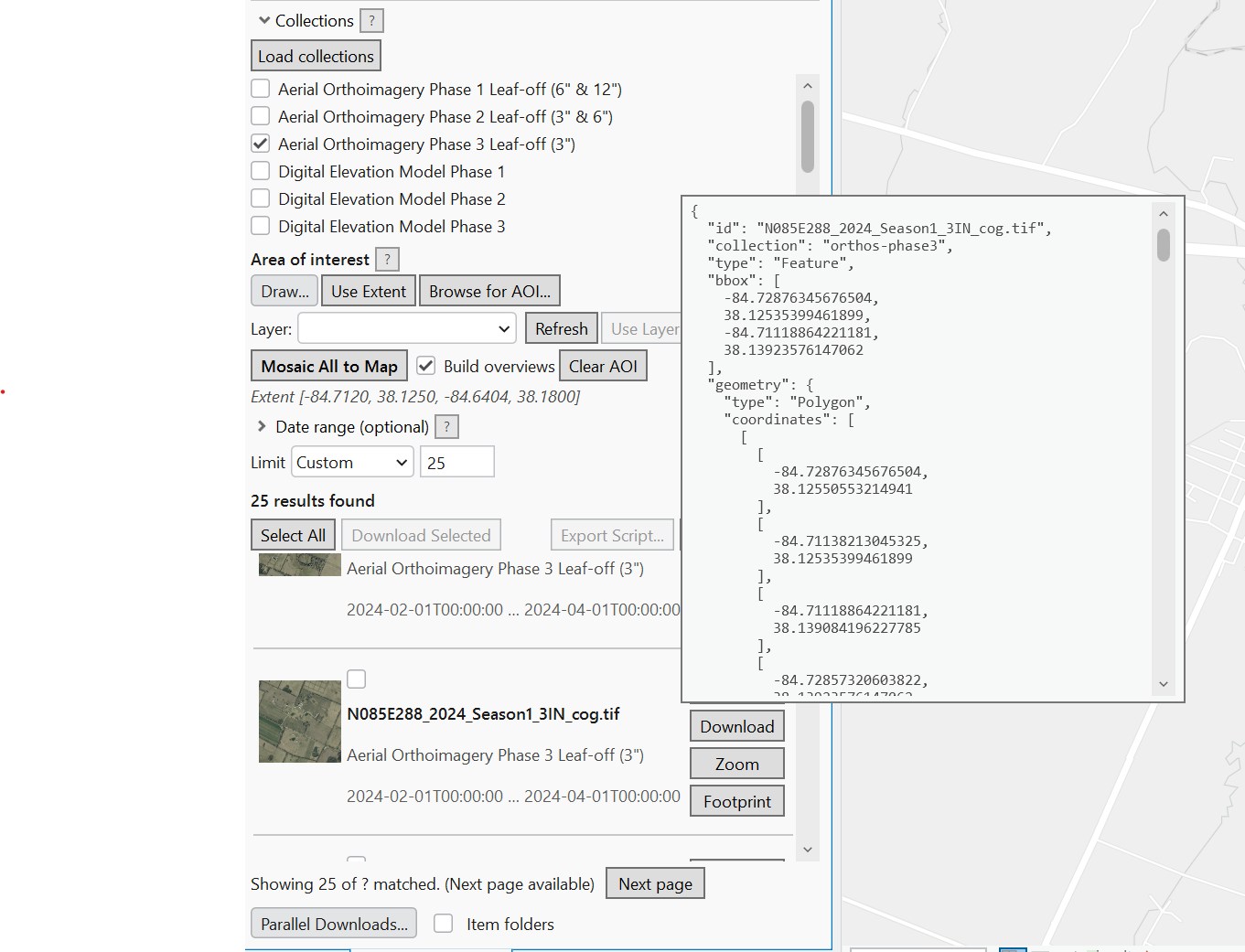
| Collections | See Collections & Sources. |
| Area of interest | See Area of Interest. |
| Date range (optional) | Collapsed by default; expand to filter by start/end date, and (below the dates) by Max cloud cover -- a percentage (default 20%). Tiles that don't report cloud cover (DEM, LiDAR, radar, most aerial imagery) are always kept. |
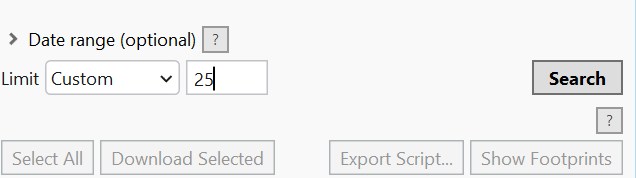
| Limit | 50 / 100 / 200 / 500 preset dropdown, or Custom for any value. Defaults to 10. |
Max cloud cover and Bring Your Own API
The cloud-cover cap is re-checked on the results themselves, not just sent as a request filter -- some STAC APIs accept the filter and silently ignore it. KyFromAbove's own imagery doesn't report cloud cover at all, so this filter mainly matters when searching another API added via Bring Your Own API.
Thumbnails and large limits
When Limit is above 50, thumbnail loading is automatically disabled for that search to avoid a burst of extra network requests -- a note appears under the Search button when this is active.
Reading the results
- The summary line above the results (e.g. "Showing 50 of 812 matched") shows how many results loaded versus how many total matches the search found.
- Select All toggles selection on every visible result (used for bulk download).
- Download Selected downloads the selected assets -- see Downloads.
- Show Footprints draws every current result's footprint on the map.
- If any point-cloud (
.laz/.las) results are present, a tip explains that they can be downloaded but not added directly to the map, and that COPC tiles have a View button (the "?" next to the tip explains it). - Next page, next to the status message at the bottom, appears when more results are available.
Each result row
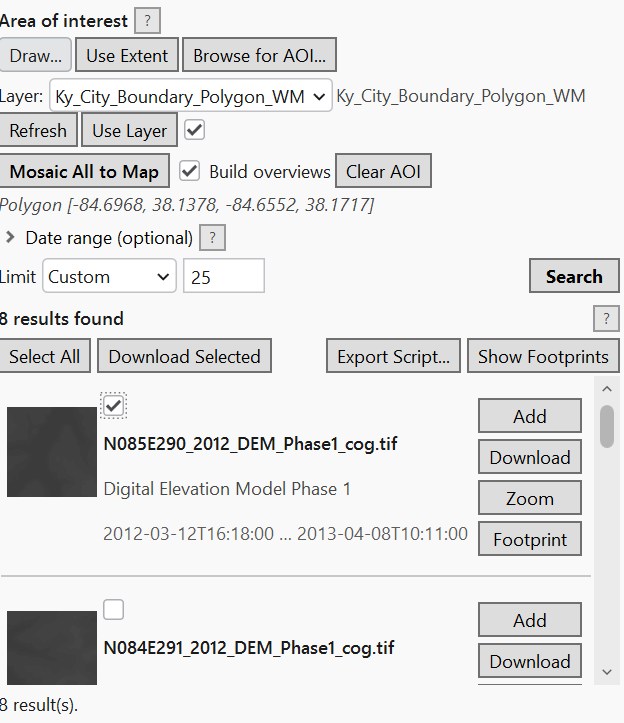
- Thumbnail (when enabled) -- loaded automatically per item.
- Checkbox -- selects the item for bulk actions.
- Title, collection, date, status -- status shows download progress or errors for that item.
- Hover card -- hovering a result for a moment shows the full underlying STAC item as pretty-printed JSON (id, properties, assets, links, geometry). Move the mouse onto the card to scroll it, select and copy text, or click any URL in it (asset and thumbnail links) to open it in your browser. It closes shortly after the mouse leaves both the result and the card.
- Per-item buttons:
- Add -- adds the item's raster (COG) asset directly to the active map.
- View -- shown instead of Add for COPC point-cloud results. Opens the tile in the KyFromAbove LiDAR Point Cloud Viewer in your web browser.
- Download -- prompts for a save location and downloads that one asset.
- Zoom -- zooms the map to the item's bounding box.
- Footprint -- draws just this item's footprint on the map.