Downloads
Downloading selected results
Click Download Selected (above the results list). If nothing is selected, every downloadable result is used instead. You'll be prompted to pick a destination folder -- there's no persistent "download to" box, so this happens fresh each time; the dialog starts in whatever folder you picked last.
Large batches (100+ tiles)
Downloading more than 100 tiles at once shows a confirmation dialog first ("Downloading a larger number of tiles can take a significant amount of time. Continue?") before starting.
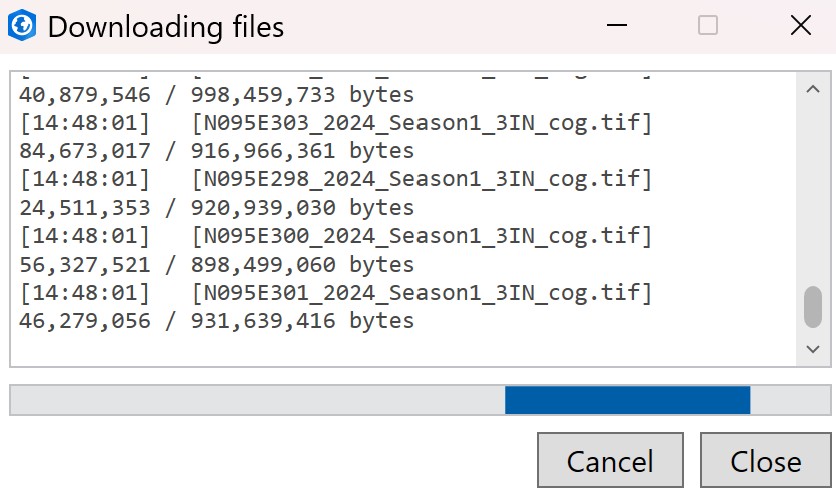
A progress dialog shows per-asset status as downloads run, with a Cancel button that stops any downloads still in progress (already-completed files are kept). It closes itself automatically once at least one file downloads successfully (or you cancel); if every download fails, it stays open so you can read why -- click Close to dismiss it.
Both raster (COG) and point-cloud (.laz/.las, etc.) assets can be downloaded this way, even
though point-clouds can't be added directly to the map. COPC point-cloud results have a View
button instead of Add, which opens the tile in the
KyFromAbove LiDAR Point Cloud Viewer in your web browser.
Parallel Downloads
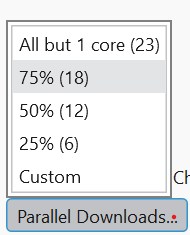
The Parallel Downloads ▾ button (bottom of the pane) controls how many assets download at once:
| Option | Meaning |
|---|---|
| All but 1 core | core count - 1 parallel downloads |
| 75% (default) | 75% of available cores |
| 50% | 50% of available cores |
| 25% | 25% of available cores |
| Custom | Enter any number in the box that appears |
Download each item to its own folder
The Item folders checkbox next to Parallel Downloads controls folder layout:
- Unchecked (default) -- all files download flat into the chosen folder. Filenames are prefixed with the item ID to avoid collisions.
- Checked -- each item gets its own subfolder, named after the item ID.
Downloading a single item
Each result row also has its own Download button, which prompts for a save location (a single file, via a standard Save dialog) instead of using the shared destination-folder flow above.
Export Script
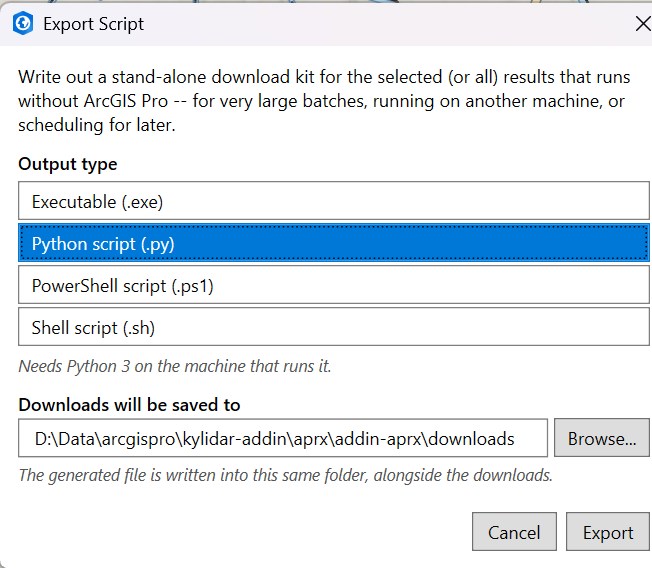
Export Script... (next to Download Selected) writes out a stand-alone download kit for the selected (or all) results that runs without ArcGIS Pro -- useful for very large batches, running on another machine, or scheduling for later.
Choose an output type -- a Python script (.py, needs Python 3, selected by default), a
Jupyter notebook (.ipynb, runs in Jupyter/JupyterLab, VS Code's notebook viewer, or Google
Colab), a self-contained executable (.exe, no dependencies), a PowerShell script (.ps1), or a
shell script (.sh) -- and where the downloads (and the generated file itself) should be saved,
then click Export.