Getting Started
Open the pane
Click the KyFromAbove-STAC-AddIn tab, then STAC Search. This opens a dockable pane (docked alongside the Contents pane by default) that stays open as you work.

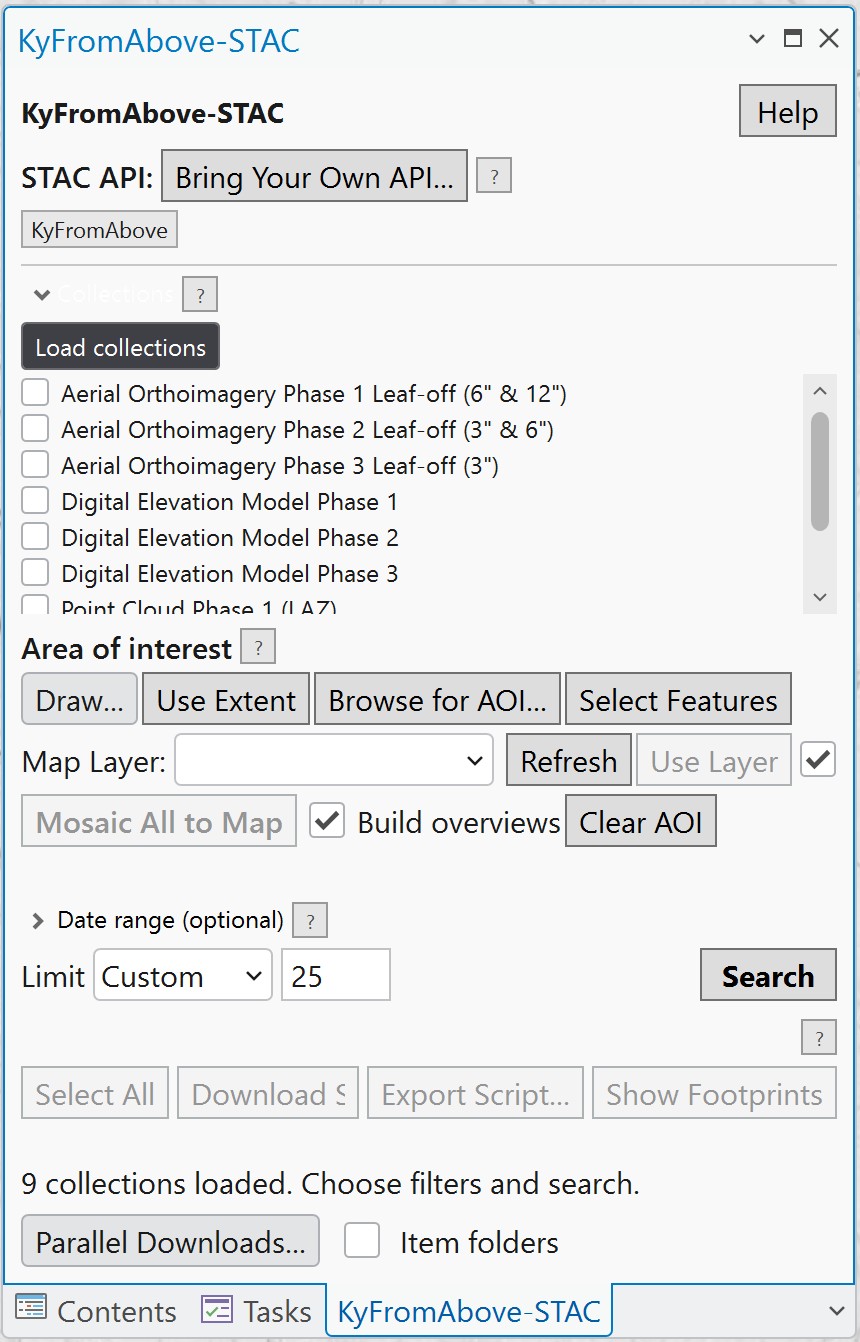
A first search, end to end
- Load collections. Under Collections, click Load collections. This populates the checkbox list from the built-in KyFromAbove catalog (and any extra API sources you've added). Leave everything unchecked to search all collections, or check specific ones to narrow the search.
- Set an area of interest (optional). Use the Draw... dropdown, Use Extent, Use Layer, or Browse for AOI... -- see Area of Interest for details. Skip this step to search without a spatial filter.
- Set a date range (optional). Expand Date range (optional) and pick start/end dates.
- Set a result limit. The Limit dropdown offers 50/100/200/500 presets or a custom value (default: 10). Limits above 50 automatically disable thumbnail loading to save network traffic.
- Click Search. Results appear below with a summary line (e.g. "Showing 10 of 340 matched"). If more results are available, a Next page button appears next to the status message.
- Work with results -- select items, download them, add rasters to the map, or view footprints. See Search & Results and Downloads.
Hover for details
Hover over any result row to see its full underlying STAC item JSON (id, properties, assets, links) as a tooltip -- useful for checking exact capture dates, CRS, or asset hrefs.