Mosaic & Footprints
Mosaic All to Map
Builds one mosaic dataset layer from the current raster (COG) results and adds it to the active map -- useful for viewing many tiles as a single seamless layer instead of adding them one at a time.
- Uses the selected results if any are checked; otherwise uses every raster result in the list. Point-cloud assets are skipped automatically.
- Build overviews (checked by default) defines and builds raster overviews after the mosaic is created, for faster display at small map scales. Unchecking it skips that step (faster to create, slower to redraw when zoomed out).
- Requires an open map view (the mosaic is created in the project's default geodatabase, using the map's spatial reference).
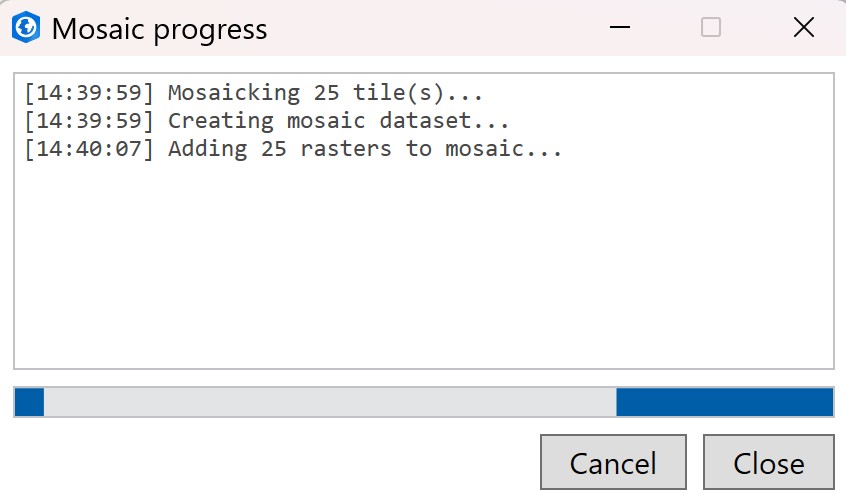
- A progress dialog reports each step (create dataset, add rasters, define/build overviews) and has a Cancel button. Cancelling takes effect before the next step starts -- it can't interrupt a geoprocessing step that's already running. A slow step (building overviews over many or large tiles can take minutes, since it reads pixel data from every COG) logs a line every 15 seconds so it doesn't look stalled.
- The dialog closes itself automatically when the mosaic is created (or you cancel). If a step fails, it stays open with the reason instead of vanishing -- click Close to dismiss it.
Large batches (100+ tiles)
Above 100 mosaic-eligible tiles, Mosaic All to Map is disabled outright -- narrow your search or select fewer tiles first. Below that, Build overviews defaults to unchecked once you're over 100 tiles (building overviews over that many COGs can take a long time), unless you've already set it yourself, in which case your choice sticks.
Show Footprints
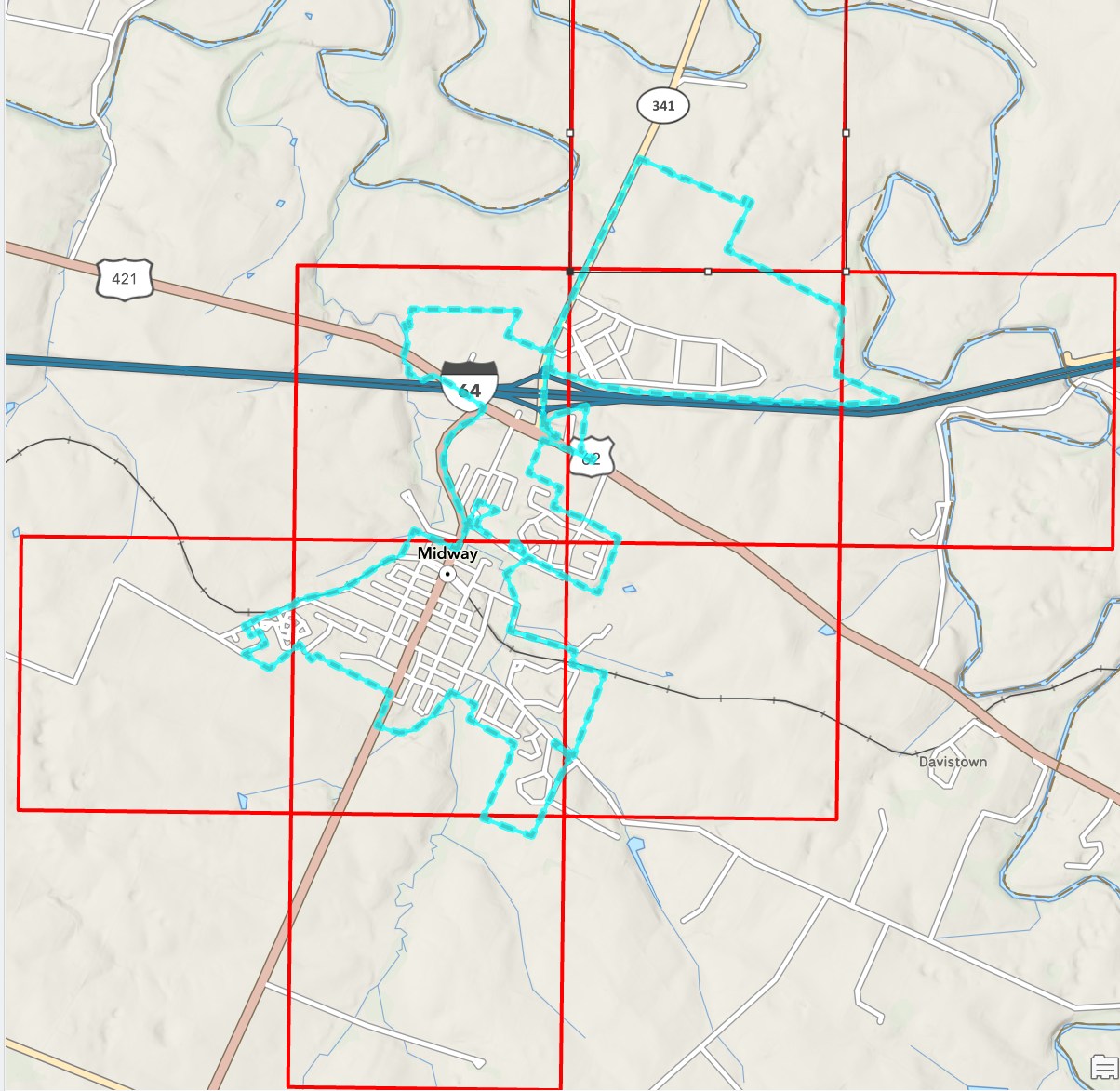
Draws the footprint of every current result as an outline on a KyFromAbove Footprints graphics layer, then zooms to their combined extent. Re-running it replaces the previous footprints rather than stacking duplicates. Requires an open map view.
Each result row also has its own Footprint button to draw just that one item's footprint (and zoom to it) without affecting the others.